
Logging into the Centerlogic Customer Portal
This guide provides step-by-step instructions on how to access and log into the Centerlogic Customer Portal. You will learn how to authenticate using different methods, including email tokens, Microsoft 365 accounts, and Google accounts. The guide will also explain how to stay logged in for future sessions.
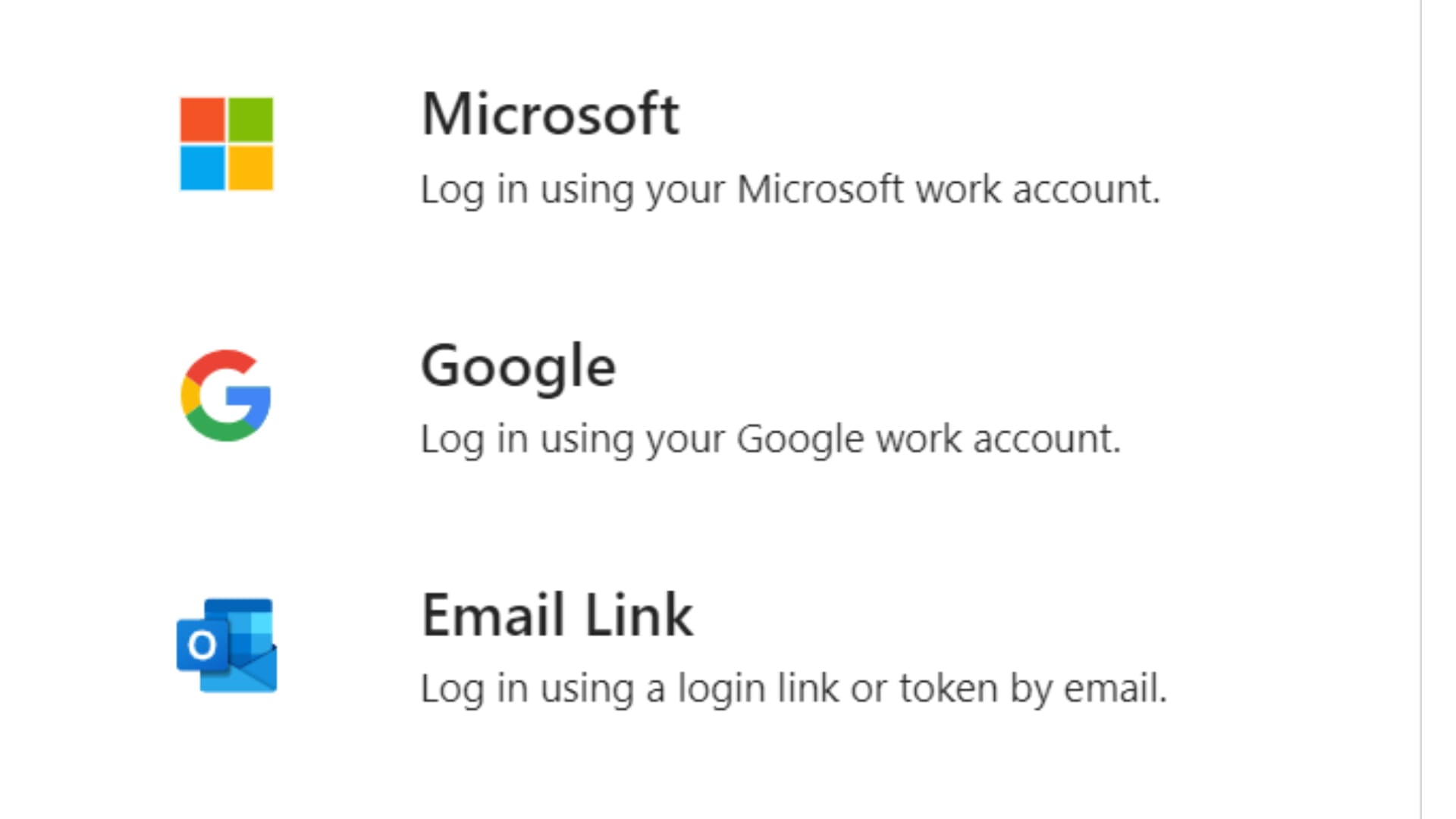
Go to https://portal.centerlogic.com and on this screen you will see the following options to choose from:
Logging In
When your portal is ready, you’ll use your email and password to log in. In some cases, you’ll need to accept a code that’s sent directly to your inbox, known as a token. The portal will keep you logged in, so there’s no need to re-enter credentials every time.
For Office 365:
Choose the Microsoft option Use your Microsoft 365 account to log in
For Google:
Choose the Google option Use your Google account dialog to log in
For email token:
Choose the “Email” option, enter your email address and press the “Get Log In Token” Check your email and either enter the token sent or press the button in the email to log in directly